# Formulas
Formulas are a powerful tool to surface hidden information in Jira, perform arithmetic operations, and turn raw data into realtime, actionable insights. You can automate planning, streamline tracking, enhance reporting, or whatever it is you're doing in Jira, right where your work lives.
To use formulas in a Sheet, add formula columns to the table. Once added, a formula column requires configuration. To configure the column and enter a formula, either click one of the initially shown
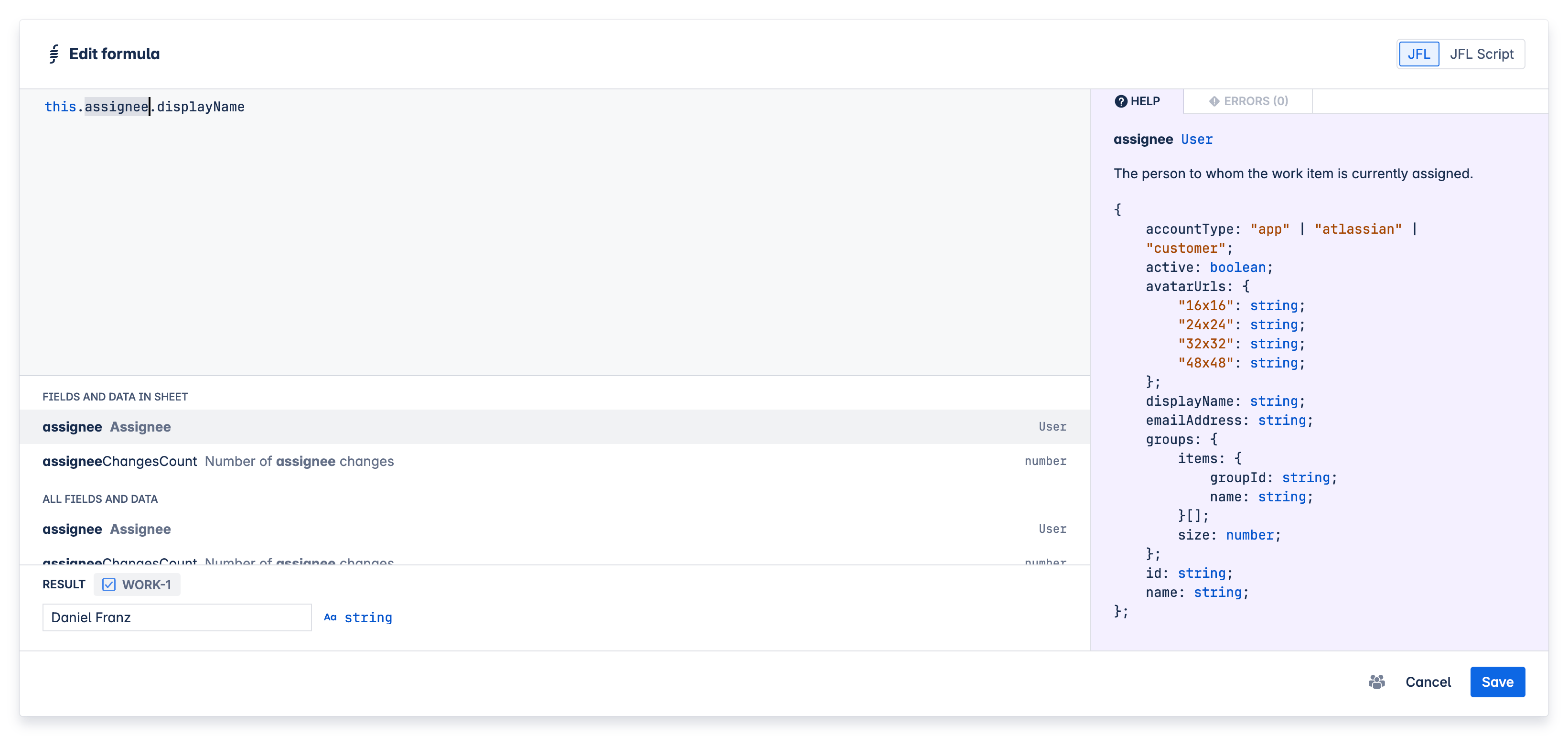
The formula composer has various panels that assist you in writing the perfect formula.
- Language switch - At the top right of the dialog, you can switch between JFL and JFL Script mode. Read more about the differences between these languages below.
- Formula - The big input area on the left is where you type in your formula.
- Suggestions - Just below the formula input, you can find auto-complete suggestions responsive to what you enter.
- Result - At the bottom left, you can see a live preview of the result of the evaluation of your formula. You can pick which Work item you'd like to use for this preview.
- Help - On the right in the purple panel, there are always useful hints based on your input. E.g. you can explore data structures of Work items, Fields, and properties, as well as find descriptions and syntax help for functions, operators, and more.
- Errors - Also on the right in the red panel, in a separate tab, you can browse any errors your current formula draft may cause. This is intentionally very responsive to assist you in improving your input.
# Language
If you have come across formula languages in other products like Microsoft Excel, Google Sheets, Airtable, Smartsheet, etc. this should be a somewhat familiar experience.
There are, however, some distinctive syntactical traits as well as a different approach to referencing data. Due to the dynamic nature of JXL Sheets, there is no way of referencing specific individual cells or cell ranges of the table (e.g. A1-B5). Instead, you refer to Jira objects (e.g. Work items) and their Fields, data, and properties.
Security notice
The formula composer, JFL, and JFL Script, are highly secure. It is, however, achievable to write formulas or scripts that result in very complex computing requirements, e.g. certain regular expressions. This cannot negatively affect your data or cause any privacy or security concerns, but in some cases your web browser might freeze when trying to load or refresh a Sheet that contains such a formula. In the unlikely event that you ever experience this, you can append the ?safeMode parameter to the URL of the affected Sheet (or &safeMode in cases where there are already other URL parameters). This loads the Sheet without executing formulas, and allows you to remove or improve the formula that causes the problem.
# JFL
JFL is an Excel-like formula language for Jira that's suitable for most of your use cases. (For more complex jobs, you can also switch over to JFL Script, which is an even more powerful, JavaScript-like language that requires some experience in scripting or programming.)
Just like an Excel formula, JFL is written in one line, without line breaks.
You can reference Jira objects (e.g. Work items) and their data, use methods like slice() or trim(), functions like DATE() or IF(), and much more.
Example
( this.customfield_10010 * VALUE(this.customfield_10011) * this.customfield_10012 ) / this.customfield_10013
In this example, we calculate a RICE prioritisation formula , by multiplying and dividing the values of some Custom fields that we have created for this purpose.
We also use the VALUE() function to convert the data type (opens new window) of one of the Custom field values involved. The error panel will always let you know when Jira data makes type conversions like this necessary.
Getting started
Start by typing this. and you will receive suggestions for Fields, data, and properties in the suggestions panel. The this keyword is used to reference the current Work item.
Assuming the Custom field you'd like to reference is named "Reach", type that field name next, i.e. this.rea ...so the suggestions panel offers the "Reach" Custom field. When you pick that suggestion, the relevant Custom field ID will be inserted into your formula.
# JFL Script
JFL Script is a scripting language suitable for all your use cases, from simple calculations to the most complex of jobs. It's a sub spec of JavaScript (opens new window) and TypeScript (opens new window) that requires some experience in scripting or programming, or willingness to learn. (For a simpler, more Excel-like formula language still suitable for most use cases, you can switch over to JFL.)
JFL Script can be written on multiple lines. Use your ↲ Enter key for line breaks just like you're used to.
You must write a return statement (opens new window) to stop execution of the script and publish a value into table cells.
Just like in JavaScript, you can declare variables and functions, reference data objects (e.g. Work items) and their properties, use methods like slice(), conditional statements like if(), access utility objects like Math, write comments, and much more.
Example
// Only run the formula for work items that aren't epics
if (this.issueType.description != "Epic") {
    // Get the values of the custom fields Reach, Impact, Confidence, and Effort
    let reach = this.customfield_10010 ?? 100;
    let impact = this.customfield_10011 ? parseFloat(this.customfield_10011.value) : 1;
    let confidence = this.customfield_10012 ?? 80;
    let effort = this.customfield_10013 ?? 1;
    // Calculate RICE score
    let riceScore = (reach * impact * confidence) / effort;
    // Publish score to cell
    return riceScore;
}
In this example, we calculate a RICE prioritisation formula , by multiplying and dividing the values of some Custom fields that we have created for this purpose.
# Functions
# ABS()
The ABS function calculates the absolute value of the given number.
Arguments
valueNumeric value to calculate the absolute value of.
ABS(value)
# AND()
Use the AND function to test if all given conditions are True. An empty set of conditions yields True.
Arguments
conditionsConditions to be tested.
AND(condition1, condition2, ..., conditionN)
# AVERAGE()
The AVERAGE function calculates the average (arithmetic mean) of the given values. If there are only undefined values this returns NaN (Not a Number).
Arguments
valuesValues to calculate the average of.
AVERAGE([value1, value2, ..., valueN])
# CALENDAR_DATE()
The CALENDAR_DATE function returns a date when given a text string.
Arguments
valueText string in the format YYYY-MM-DD (e.g. “2021-03-29“).
CALENDAR_DATE(value)
# CEILING()
The CEILING function rounds a number up to the nearest multiple of a specified significance. Negative numbers are rounded toward zero. If the number is positive, but the significance is negative, or any of the arguments is not a number this will yield NaN (Not a Number).
Arguments
valueNumeric value to be rounded. \significanceMultiple to which the number should be rounded.
CEILING(value, [significance])
# CONCAT()
The CONCAT function combines multiple values into one string. It converts each value to a string and joins them together without any separator.
Arguments
valuesValues to concatenate.
CONCAT(value1, value2, ..., valueN)
# DATE()
The DATE function returns a Date object when given individual year, month, and day components. The exact instant is calculated in UTC.
Arguments
yearYear of the date. \monthMonth of the date (1 for January, 12 for December) \dayDay of the month.
DATE(year, month, day)
# DATEDIF()
The DATEDIF function calculates the number of days, months, or years between two dates.
Arguments
startDateStart date of the given period. \endDateEnd date of the given period. \unitThe type of information that you want returned. "Y": Number of completed years. "M": Number of completed months. "D": Number of days in the period. “H”: Number of hours in the period. "MD": Difference of days (ignoring months and years). "YM": Difference in months (ignoring years and days). "YD": Difference of the days (ignoring the years).
DATEDIF(startDate, endDate, unit)
# DIFFERENCE()
The DIFFERENCE function subtracts the given values.
Arguments
minuendValue to subtract from. \subtrahendValue to subtract.
DIFFERENCE(minuend, subtrahend)
# EVEN()
The EVEN function rounds the given value to the nearest even number.
Arguments
valueNumeric value to be rounded.
EVEN(value)
# FALSE()
The FALSE function returns the logical value False.
FALSE()
# FLOOR()
The FLOOR function rounds a number down to the nearest multiple of a specified significance. Negative numbers are rounded away from zero. If the number is positive, but the significance is negative, or any of the arguments is not a number this will yield NaN (Not a Number).
Arguments
valueNumeric value to be rounded. \significanceMultiple to which the number should be rounded.
FLOOR(value, [significance])
# IF()
Use the IF function to make a logical comparison between a value and what you expect. An IF statement can have two results. The first result is if your comparison is True, the second if your comparison is False.
For example, IF(this.assignee == undefined, "Please assign ticket", "Ticket assigned") returns “Please assign ticket” for unassigned work items, otherwise “Ticket assigned”.
Arguments
conditionCondition to be tested. \thenValueValue to return if the condition is true. \elseValueValue to return if the condition is false.
IF(condition, thenValue, [elseValue])
# ISSET()
Use the ISSET function to test if all values are defined. It returns False for null, undefined, empty strings, and empty arrays. O otherwise, it returns True.
Arguments
valuesValues to be checked.
ISSET(value1, value2, ..., valueN)
# MAX()
The MAX function yields the maximum value of its arguments. It works on numbers as well as dates (but not mixed) and handles undefined values. An empty or undefined list of values return 0.
Arguments
valuesValues to be considered.
MAX(value1, value2, ..., valueN)
# MEDIAN()
The MEDIAN function calculates the median of the given values. If there are only undefined values this returns NaN (Not a Number).
Arguments
valuesValues to calculate the median of.
MEDIAN([value1, value2, ..., valueN])
# MIN()
The MIN function yields the minimum value of its arguments. It works on numbers as well as dates (but not mixed) and handles undefined values. An empty or undefined list of values return 0.
Arguments
valuesValues to be considered.
MIN(value1, value2, ..., valueN)
# NOT()
The NOT function returns the logical negation of a given condition.
Arguments
conditionCondition to be negated.
NOT(condition)
# NOW()
The NOW function returns the date and time of the current instant.
NOW()
# ODD()
The ODD function rounds the given value to the nearest odd number.
Arguments
valueNumeric value to be rounded.
ODD(value)
# OR()
Use the OR function to test if any given conditions are true. An empty set of conditions yields False.
Arguments
conditionsConditions to be tested.
OR(condition1, condition2, ..., conditionN)
# PERCENTILE()
The PERCENTILE function returns any percentile of the given values. If there are only undefined values this returns NaN (Not a Number).
Arguments
valuesValues to calculate the percentile of. \percentileA percentile value in the range 0 to 1 inclusive.
PERCENTILE([value1, value2, ..., valueN], percentile)
# POW()
The POW function returns a number raised to the power of an exponent. If the given value is not a number, this will yield NaN (Not a Number).
Arguments
baseBase number to raise to the power of the exponent. \exponentExponent to which the base number is raised.
POW(base, exponent)
# PRODUCT()
The PRODUCT function multiplies a list of values. An empty or undefined list of values return 0.
Arguments
valuesValues to be multiplied.
PRODUCT(value1, value2, ..., valueN)
# QUOTIENT()
The QUOTIENT function divides the given values.
Arguments
dividendValue to divide. \divisorValue to divide by.
QUOTIENT(dividend, divisor)
# RICHTEXT_TO_STRING()
The RICHTEXT_TO_STRING function returns a single line plain text representation of a RichText object.
Arguments
richTextRichText value to convert to a string.
RICHTEXT_TO_STRING(richText)
# ROUND()
The ROUND function rounds a number to a specified number of digits.
Arguments
valueNumeric value to be rounded. \digitsNumber of digits to which the number should be rounded. If 0, the number is rounded to the nearest integer. If negative, the number is rounded to the left of the decimal point (nearest 10, 100, etc.)
ROUND(value, [digits])
# SQRT()
The SQRT function returns the square root of a number. If the given value is negative or not a number, this will yield NaN (Not a Number).
Arguments
valueA numeric greater than or equal to 0.
SQRT(value)
# SUM()
The SUM function sums up a list of values. An empty or undefined list of values return 0.
Arguments
valuesValues to be summed up.
SUM(value1, value2, ..., valueN)
# TRUE()
The TRUE function returns the logical value True.
TRUE()
# VALUE()
The VALUE function converts text of type string or Option that represents a number to a number or JavaScript timestamp value. It accepts currency symbols, spaces, and common thousand separators and decimal separators (e.g. 1,234.56 or 1.234,56). If a number cannot be detected, it falls back to parsing a date. If neither is valid, it causes an Error.
Arguments
inputText to be converted.
VALUE(input)
# Operators
# <= Less than or equal
Less than or equal
Checks if left is less than or equal to right.
Operands
left: number, right: number
# >= Greater than or equal
Greater than or equal
Checks if left is greater than or equal to right.
Operands
left: number, right: number
# == Equality (loose)
Equality (loose)
Compares two values with type coercion. In most cases, you should use === instead.
Operands
left: any, right: any
# != Inequality (loose)
Inequality (loose)
Checks if two values are not equal with type coercion. In most cases, you should use !== instead.
Operands
left: any, right: any
# === Strict equality
Strict equality
Compares two values without type coercion.
Operands
left: any, right: any
# !== Strict inequality
Strict inequality
Checks if two values are not equal without type coercion.
Operands
left: any, right: any
# => Arrow function
Arrow function
Defines a function.
Operands
params: list, body: expression/block
# + Addition, Unary plus
Addition, Unary plus
Adds two numbers, or converts operand to number (unary).
Operands
left?: number, right?: number
# - Subtraction, Unary minus
Subtraction, Unary minus
Subtracts right from left, or negates operand (unary).
Operands
left?: number, right?: number
# * Multiplication
Multiplication
Multiplies two numbers.
Operands
left: number, right: number
# ** Exponentiation
Exponentiation
Raises left to the power of right.
Operands
left: number, right: number
# / Division
Division
Divides left by right.
Operands
left: number, right: number
# % Remainder
Remainder
Returns remainder of left divided by right.
Operands
left: number, right: number
# ++ Increment
Increment
Increases operand by 1.
Operands
prefix/postfix: number
# -- Decrement
Decrement
Decreases operand by 1.
Operands
prefix/postfix: number
# << Left shift
Left shift
Shifts bits of left operand left by right operand.
Operands
left: number, right: number
# >> Right shift
Right shift
Shifts bits of left operand right by right operand (sign preserved).
Operands
left: number, right: number
# >>> Unsigned right shift
Unsigned right shift
Shifts bits right, filling with zeros.
Operands
left: number, right: number
# & Bitwise AND
Bitwise AND
Performs bitwise AND.
Operands
left: number, right: number
# | Bitwise OR
Bitwise OR
Performs bitwise OR.
Operands
left: number, right: number
# ^ Bitwise XOR
Bitwise XOR
Performs bitwise XOR.
Operands
left: number, right: number
# ! Logical NOT
Logical NOT
Negates a boolean expression.
Operands
operand: boolean
# ~ Bitwise NOT
Bitwise NOT
Inverts bits of a number.
Operands
operand: number
# && Logical AND
Logical AND
Returns first falsy or last truthy value.
Operands
left: any, right: any
# || Logical OR
Logical OR
Returns first truthy or last falsy value.
Operands
left: any, right: any
# ? Conditional (ternary) part
Conditional (ternary) part
Marks condition in ternary operator.
Operands
condition: boolean
# : Conditional (ternary) separator
Conditional (ternary) separator
Separates true/false results in ternary.
Operands
trueExpr: any, falseExpr: any
# ?? Nullish coalescing
Nullish coalescing
Returns right if left is null/undefined.
Operands
left: any, right: any
# = Assignment
Assignment
Assigns value to a variable.
Operands
left: identifier, right: any
# += Addition assignment
Addition assignment
Adds right to left and assigns.
Operands
left: number, right: number
# -= Subtraction assignment
Subtraction assignment
Subtracts right from left and assigns.
Operands
left: number, right: number
# *= Multiplication assignment
Multiplication assignment
Multiplies left by right and assigns.
Operands
left: number, right: number
# **= Exponentiation assignment
Exponentiation assignment
Raises left to right and assigns.
Operands
left: number, right: number
# /= Division assignment
Division assignment
Divides left by right and assigns.
Operands
left: number, right: number
# %= Remainder assignment
Remainder assignment
Assigns remainder of division.
Operands
left: number, right: number
# <<= Left shift assignment
Left shift assignment
Shifts left by right and assigns.
Operands
left: number, right: number
# >>= Right shift assignment
Right shift assignment
Shifts right (sign preserved) and assigns.
Operands
left: number, right: number
# >>>= Unsigned right shift assignment
Unsigned right shift assignment
Shifts right (zero fill) and assigns.
Operands
left: number, right: number
# &= Bitwise AND assignment
Bitwise AND assignment
Performs bitwise AND and assigns.
Operands
left: number, right: number
# |= Bitwise OR assignment
Bitwise OR assignment
Performs bitwise OR and assigns.
Operands
left: number, right: number
# ^= Bitwise XOR assignment
Bitwise XOR assignment
Performs bitwise XOR and assigns.
Operands
left: number, right: number
# Fields
| Field ID | Name | Description |
|---|---|---|
activeSprint | Active sprint | The active development iteration the work item is in scope of. |
affectedServices | Affected services | Service objects to which the work item is or was relating. |
affectedServicesCount | Number of affected services | The number of service objects to which the work item is or was relating. |
affectsVersionDescription | Affected version description | The description of the space version to which the work item is or was relating. |
affectsVersionReleaseDate | Affected version release date | The release date of the space version to which the work item is or was relating. |
affectsVersions | Affects versions | Space versions to which the work item is or was relating. |
affectsVersionsCount | Number of affected versions | The number of space versions to which the work item is or was relating. |
affectsVersionStatus | Affected version status | The status of the space version to which the work item is or was relating. |
allCommenters | All commenters | All users who have commented on the work item. |
allComments | All comments | The last comment on the work item. When exported, all comments, their authors, times and dates are included. |
allExternalComments | All external comments | The last external comment on the work item. When exported, all external comments, their authors, times and dates are included. |
allUpdates | All updates | The last update action on the work item. When exported, the work item's entire change history is included. |
appfireBigPictureRiskConsequence | Risk consequence | BigPicture app: The risk consequence severity of the issue, used in the Risks module. |
appfireBigPictureRiskProbability | Risk probability | BigPicture app: The risk probability of the issue, used in the Risks module. |
appfireBigPictureTaskMode | Task mode | BigPicture app: The scheduling mode of the issue, used in the Gantt module. |
approvers | Approvers | The users needed for approval of the Jira Service Management work item. |
assignee | Assignee | The person to whom the work item is currently assigned. |
assigneeChangesCount | Number of assignee changes | The number of times the work item was assigned to people. |
assigneeDomain | Domain of assignee | The domain of the email address of the person to whom the work item is currently assigned to. |
atlasProjectKey | Atlassian project key | The key of the Atlassian project connected to the work item. |
atlasProjectStatus | Atlassian project status | The status of the Atlassian project connected to the work item. |
attachments | Attachments | The files attached to the work item. |
attachmentsCount | Number of attachments | The number of files attached to the work item. |
attachmentsSize | Attachments size | The size of files attached to the work item. Unit: bytes |
businessValue | Business value | Measurement of business value of a requirement. |
category | Category | A category to classify or group the work item of the work item. |
closedSprints | Closed sprints | The closed development iterations the work item is in scope of. |
closedSprintsCount | Number of closed sprints | The number of closed development iterations the work item is in scope of. |
commentsCount | Number of comments | The number of comments on the work item. |
components | Components | Space components to which the work item relates. |
componentsCount | Number of components | The number of space components to which the work item relates. |
createdDate | Created date | The date and time when the work item was created. |
creator | Creator | The person who initially created the work item. |
description | Description | A detailed description of the work item. |
developmentBuildsCount | Number of builds | The number of current builds the work item is referenced in. |
developmentBuildsStatus | Builds status | The status of builds the work item is referenced in. |
developmentPullRequestsCount | Number of pull requests | The number of current pull requests the work item is referenced in. |
developmentPullRequestsStatus | Pull requests status | The status of pull requests the work item is referenced in. |
digitalRoseESignSignatureCount | Signature count | eSign app: Number of signatures on the work item. |
digitalRoseESignSignatureExport | Signature export | eSign app: Signature list of the work item (name, title, date and time, meaning). |
digitalRoseESignSignatureFinalized | Signature finalized | eSign app: Date and time the signatures on the work item were finalized. |
digitalRoseESignSignaturePending | Signature pending | eSign app: Number of invited but still pending signatures on the work item. |
digitalRoseESignSignatureStatusCount | Signature status count | eSign app: Number of signatures in the latest work item status group. |
digitalRoseESignSignedBy | Signed by | eSign app: List of users who executed signatures on the work item. |
digitalRoseESignSignedOn | Signed on | eSign app: Date and time of the most recent signature on the work item. |
dueDate | Due date | The date by which the work item is scheduled to be completed. |
easyAgileProgramsProgram | Program | Easy Agile Programs for Jira app: The program that the work item is associated with. |
easyAgileProgramsProgramIncrement | Program increment | Easy Agile Programs for Jira app: The timeboxed delivery period that the work item is in scope of. |
environment | Environment | The hardware or software environment to which the work item relates. |
epicColor | Epic color | A color for the epic, which is used on Boards, Backlogs, Roadmaps, etc. |
epicLink | Epic link | A link to the work item's parent epic. |
epicName | Epic name | The short name of the epic, a work item representing a large body of work. |
epicStatus | Epic status | The status of the epic, which determines whether it is displayed in the Epics panel of the Backlog in company-managed Software spaces. |
epicTheme | Epic theme | Theme labels under which the work item is grouped. |
firstComment | First comment | The first comment on the issue. Includes both internal and external comments on Jira Service Management work items. |
firstCommentBy | First commented by user | The user who first commented on the work item. |
firstCommentByCustomer | First comment by customer | The first comment from a customer on the Jira Service Management work item. |
firstCommentByCustomerBy | First commented by customer | The customer who first commented on the Jira Service Management work item. |
firstCommentByCustomerDate | Date of first comment by customer | The date and time when a customer first commented on the Jira Service Management work item. |
firstCommentDate | Date of first comment | The date and time when the work item was first commented on. |
firstCommentVisibility | First comment visibility | The visibility (Internal, External) of the first comment on the work item. |
firstExternalComment | First external comment | The first external comment on the Jira Service Management work item. |
firstExternalCommentBy | First externally commented by user | The user who first made an external comment on the Jira Service Management work item. |
firstExternalCommentDate | Date of first external comment | The date and time when an external comment was first made on the Jira Service Management work item. |
firstInternalComment | First internal comment | The first internal comment on the Jira Service Management work item. |
firstInternalCommentBy | First internally commented by user | The user who first made an internal comment on the Jira Service Management work item. |
firstInternalCommentDate | Date of first internal comment | The date and time when an internal comment was first made on the Jira Service Management work item. |
firstResponseToCustomer | First response to customer | The first reponse to a customer on the Jira Service Management work item. |
firstResponseToCustomerBy | First responded to customer by user | The user who first responded to a customer on the Jira Service Management work item. |
firstResponseToCustomerDate | Date of first response to customer | The date and time when a customer was first responded to on the Jira Service Management work item. |
firstSprint | First sprint | The first development iteration the work item is in scope of. |
fixVersionDescription | Fix version description | The description of the space version in which the work item was or will be addressed. |
fixVersionReleaseDate | Fix version release date | The release date of the space version in which the work item was or will be addressed. |
fixVersions | Fix versions | Space versions in which the work item was or will be addressed. |
fixVersionsCount | Number of fix versions | Number of space versions in which the work item was or will be addressed. |
fixVersionStatus | Fix version status | The status of the space version in which the work item was or will be addressed. |
flagged | Flagged | A flag indicating whether the work item is an impediment or otherwise important. |
futureSprint | Future sprint | The future development iteration the work item is in scope of. |
heroCodersIssueChecklist | Checklist | Checklists for Jira app: The content of the checklists of the work item. |
heroCodersIssueChecklistCompleted | Checklist completed | Checklists for Jira app: A text value indicating the state of completion of the checklists of the work item. |
heroCodersIssueChecklistProgress | Checklist progress | Checklists for Jira app: A progress bar indicating the state of completion of the checklists of the work item. |
heroCodersIssueChecklistProgressPercent | Checklist progress % | Checklists for Jira app: A percentage value indicating the state of completion of the checklists of the work item. |
images | Images | The images attached to the work item. |
issueColor | Work item color | A color for the work item. |
issueId | Work item ID | The ID of the work item. |
issueKey | Work item key | |
issueLinkDescriptions | Work item link descriptions | The inward and outward link descriptions of the work item links. |
issueLinks | Work item links | Links to other work items. |
issueLinksCount | Number of work item links | The number of links to other work items. |
issueLinkTypes | Work item link types | The types of work item links. |
issueType | Work type | |
issueUrl | Work item URL | The URL of the work item. |
jxlNotes | Notes | Add a note to the work item. Only visible in the context of this particular sheet and lost after the sheet is deleted. Not a Jira work item field. |
labels | Labels | The labels to which the work item relates. |
labelsCount | Number of labels | The number of labels to which the work item relates. |
lastAttachment | Last attachment | The last file attached to the work item. |
lastAttachmentDate | Date of last attachment | The date and time when the last file was attached to the work item. |
lastComment | Last comment | The last comment on the work item. Includes both internal and external comments on Jira Service Management work items. |
lastCommentBy | Last commented by user | The user who last commented on the work item. |
lastCommentByCustomer | Last comment by customer | The last comment from a customer on the Jira Service Management work item. |
lastCommentByCustomerBy | Last commented by customer | The customer who last commented on the Jira Service Management work item. |
lastCommentByCustomerDate | Date of last comment by customer | The date and time when a customer last commented on the Jira Service Management work item. |
lastCommentDate | Date of last comment | The date and time when the work item was last commented on. |
lastCommentVisibility | Last comment visibility | The visibility (Internal, External) of the last comment on the work item. |
lastExternalComment | Last external comment | The last external comment on the Jira Service Management work item. |
lastExternalCommentBy | Last externally commented by user | The user who last made an external comment on the Jira Service Management work item. |
lastExternalCommentDate | Date of last external comment | The date and time when an external comment was last made on the Jira Service Management work item. |
lastInternalComment | Last internal comment | The last internal comment on the Jira Service Management work item. |
lastInternalCommentBy | Last internally commented by user | The user who last made an internal comment on the Jira Service Management work item. |
lastInternalCommentDate | Date of last internal comment | The date and time when an internal comment was last made on the Jira Service Management work item. |
lastPublicActivityDate | Date of last public activity | The date and time of the last public activity on the Jira Service Management work item. |
lastResponseToCustomer | Last response to customer | The last reponse to a customer on the Jira Service Management work item. |
lastResponseToCustomerBy | Last responded to customer by user | The user who last responded to a customer on the Jira Service Management work item. |
lastResponseToCustomerDate | Date of last response to customer | The date and time when a customer was last responded to on the Jira Service Management work item. |
lastSprint | Last sprint | The last development iteration the work item is in scope of. |
lastUpdate | Last update | The last update action on the work item. |
lastUpdateBy | Last updated by user | The user who last updated the work item. |
lastViewedDate | Last viewed date | The date and time when the work item was last viewed. |
linkedIssues | Linked work items | Work items to which the work item relates. |
linkedIssuesCount | Number of linked work items | The number of linked work items. |
linkedIssueStatuses | Linked work item statuses | The statuses of linked work items. |
linkedIssueTypes | Linked work types | The work types of linked work items. |
linkedWorkItems | Linked work items | Work items to which the work item relates. |
linkedWorkItemsCount | Number of linked work items | The number of linked work items. |
linkedWorkItemStatuses | Linked work item statuses | The statuses of linked work items. |
linkedWorkTypes | Linked work types | The work types of linked work items. |
majorIncident | Major incident | A checkbox indicating whether the work item is marked as a severe disruption or otherwise significant. |
openSprint | Open sprint | The open development iteration the work item is in scope of. |
organizations | Organizations | The groups of customers that the Jira Service Management work item is shared with. |
originalEstimate | Original estimate | The amount of time originally anticipated to resolve the work item. Unit: seconds |
originalEstimateSum | Σ Original estimate | The aggregate amount of time originally anticipated to resolve the work item and its sub-tasks. Unit: seconds |
parent | Parent | The parent work item. |
parentIssueType | Parent work type | The type of the parent work item. |
parentLink | Parent link | The parent work item, as associated in an Advanced Roadmaps plan. |
parentPriority | Parent priority | The importance of the parent work item in relation to other issues. |
parentStatus | Parent status | The stage the parent work item is currently at in its workflow. |
parentSummary | Parent summary | The summary of the parent work item. |
parentWorkType | Parent work type | The type of the parent work item. |
portalIssueUrl | Customer portal work item URL | The URL of the work item in the Jira Service Management customer portal. |
previousStatus | Previous status | The previous stage the work item was at in its workflow. |
priority | Priority | The importance of the work item in relation to other work items. |
progress | Progress | A progress bar displaying the time logged and the original, remaining, total estimates of the work item. |
progressSum | Σ Progress | A progress bar displaying the time logged and the original, remaining, total estimates of the work item and its sub-tasks. |
project | Space | The space to which the work item belongs. |
projectCategory | Space category | The space category of the space to which the work item belongs. |
projectConfigurationType | Space configuration type | The space configuration type, company-managed or team-managed, of the space to which the work item belongs. |
projectId | Space ID | The ID of the space to which the work item belongs. |
projectKey | Space key | |
projectType | Space type | The space type, i.e. the Jira product, of the space to which the work item belongs. |
rank | Rank | Jira wide, global rank of the work item in LexoRank format. |
remainingEstimate | Remaining estimate | The currently anticipated remaining amount of time to resolve the work item. Unit: seconds |
remainingEstimateSum | Σ Remaining estimate | The currently anticipated remaining aggregate amount of time to resolve the work item and its sub-tasks. Unit: seconds |
reporter | Reporter | The person who entered the work item or on whose behalf it was entered. |
reporterDomain | Domain of reporter | The domain of the email address of the person who entered the work item or on whose behalf it was entered. |
requestChannel | Request channel | The channel through which a Jira Service Management customer portal request was created in. |
requestLanguage | Request language | The language in which a Jira Service Management customer portal request was created in. |
requestParticipants | Request participants | The users participating in the customer Jira Service Management portal request. |
requestType | Request type | The work item's request type chosen in the Jira Service Management customer portal. |
resolution | Resolution | A record of if and how the work item has been resolved. |
resolvedDate | Resolved date | The date and time when the work item was last resolved. |
satisfaction | Satisfaction | The star rating of the customer's feedback on their resolved Jira Service Management request. |
satisfactionComment | Satisfaction comment | The comment of the customer's feedback on their resolved Jira Service Management request. |
satisfactionDate | Satisfaction date | The date of the customer's feedback on their resolved Jira Service Management request. |
securityLevel | Security level | The security level of the work item, which determines who can view it. |
space | Space | The space to which the work item belongs. |
spaceCategory | Space category | The space category of the space to which the work item belongs. |
spaceConfigurationType | Space configuration type | The space configuration type, company-managed or team-managed, of the space to which the work item belongs. |
spaceId | Space ID | The ID of the space to which the work item belongs. |
spaceKey | Space key | |
spaceType | Space type | The space type, i.e. the Jira product, of the space to which the work item belongs. |
sprint | Sprint | The development iterations that the work item is in scope of. |
sprintClosure | Sprint closure | The closure status (Closed, Open) of the development iterations that the work item is in scope of. |
sprintCount | Number of sprints | The number of development iterations the work item is in scope of. |
sprintGoal | Sprint goal | The goal of the last development iteration that the work item is in scope of. |
sprintStatus | Sprint status | The status (Closed, Active, Future) of the last development iteration that the work item is in scope of. |
startDate | Start date | The date by which the work item is scheduled to start. |
status | Status | The stage the work item is currently at in its workflow. |
statusCategory | Status category | The category of the current status of the work item. |
statusCategoryChangedDate | Date of status category change | The date and time when the status category of the work item last changed. |
statusChangedDate | Date of status change | The date and time when the work item was transitioned to specified statuses. |
statusChangesCount | Number of status changes | The number of times the work item was transitioned to specified statuses. |
statusDate | Date of status | The date and time when the work item was in specified statuses. |
statusesCount | Number of statuses | The number of times the work item was in specified statuses. |
storyPoints | Story points | Measurement of complexity and/or size of a requirement. |
storyPointsEstimate | Story point estimate | Measurement of complexity and/or size of a requirement. |
subtasks | Sub-tasks | The child work items. |
subtasksCount | Number of sub-tasks | The number of sub-tasks of the work item. |
subtasksDonePercent | Sub-tasks done percentage | The percentage of the work item's sub-tasks in status category Done. |
subtasksProgress | Sub-tasks progress | A distribution bar displaying the work item's sub-tasks' status categories. |
subtaskStatuses | Sub-task statuses | The statuses of sub-tasks of the work item. |
summary | Summary | A brief one-line summary of the work item. |
targetEnd | Target end | The target end date of the work item in an Advanced Roadmaps plan. |
targetStart | Target start | The target start date of the work item in an Advanced Roadmaps plan. |
team | Team | The team to which the work item is associated. |
tempoAccount | Tempo account | Tempo app: The account associated with the work item. |
tempoTeam | Tempo team | Tempo app: The team associated with the work item. |
timeBetweenCreatedAndFirstResponseToCustomer | Time between created and first response to customer | The amount of time between the creation and when a customer was first responded to on the Jira Service Management work item. Unit: milliseconds |
timeBetweenCreatedAndResolved | Time between created and resolved | The amount of time between the creation of the work item and when it was last resolved. Unit: milliseconds |
timeSinceAffectsVersionReleaseDate | Time since affected version release date | The amount of time until or since the release date of the space version to which the work item is or was relating. Unit: milliseconds |
timeSinceCreated | Time since created | The amount of time since the work item was created. Unit: milliseconds |
timeSinceDueDate | Time to or since due date | The amount of time until or since the work item's due date. Unit: milliseconds |
timeSinceFirstComment | Time since first comment | The amount of time since the work item was first commented on. Unit: milliseconds |
timeSinceFirstCommentByCustomer | Time since first comment by customer | The amount of time since a customer first commented on the Jira Service Management work item. Unit: milliseconds |
timeSinceFirstExternalComment | Time since first external comment | The amount of time since an external comment was first made on the Jira Service Management work item. Unit: milliseconds |
timeSinceFirstInternalComment | Time since first internal comment | The amount of time since an internal comment was first made on the Jira Service Management work item. Unit: milliseconds |
timeSinceFirstResponseToCustomer | Time since first response to customer | The amount of time since a customer was first responded to on the Jira Service Management work item. Unit: milliseconds |
timeSinceFixVersionReleaseDate | Time to fix version release date | The amount of time until or since the release date of the space version in which the work item was or will be addressed. Unit: milliseconds |
timeSinceLastAttachment | Time since last attachment | The amount of time since the last file was attached to the work item. Unit: milliseconds |
timeSinceLastComment | Time since last comment | The amount of time since the work item was last commented on. Unit: milliseconds |
timeSinceLastCommentByCustomer | Time since last comment by customer | The amount of time since a customer last commented on the Jira Service Management work item. Unit: milliseconds |
timeSinceLastExternalComment | Time since last external comment | The amount of time since an external comment was last made on the Jira Service Management work item. Unit: milliseconds |
timeSinceLastInternalComment | Time since last internal comment | The amount of time since an internal comment was last made on the Jira Service Management work item. Unit: milliseconds |
timeSinceLastPublicActivity | Time since last public activity | The amount of time since the last public activity on the Jira Service Management work item. Unit: milliseconds |
timeSinceLastResponseToCustomer | Time since last response to customer | The amount of time since a customer was last responded to on the Jira Service Management work item. Unit: milliseconds |
timeSinceLastViewed | Time since last viewed | The amount of time since the work item was last viewed. Unit: milliseconds |
timeSinceResolved | Time since resolved | The amount of time since the work item was last resolved. Unit: milliseconds |
timeSinceStartDate | Time to or since start date | The amount of time until or since the work item's start date. Unit: milliseconds |
timeSinceStatus | Time since status | The amount of time since the work item was in specified statuses. Unit: milliseconds |
timeSinceStatusCategoryChanged | Time since status category changed | The amount of time since the status category of the work item last changed. Unit: milliseconds |
timeSinceStatusChanged | Time since status changed | The amount of time since the work item was transitioned to specified statuses. Unit: milliseconds |
timeSinceTargetEnd | Time to or since target end | The amount of time until or since the work item's target end date. Unit: milliseconds |
timeSinceTargetStart | Time to or since target start | The amount of time until or since the work item's target start date. Unit: milliseconds |
timeSinceUpdated | Time since updated | The amount of time since the work item was last updated. Unit: milliseconds |
timeSpent | Time spent | The amount of time logged working on the work item so far. Unit: seconds |
timeSpentSum | Σ Time spent | The aggregate amount of time logged working on the work item and its sub-tasks so far. Unit: seconds |
updatedDate | Updated date | The date and time when the work item was last edited. |
updatesCount | Number of updates | The number of update actions in the work item's change history. |
votes | Votes | A number indicating how many votes the work item has. |
watchers | Watchers | A number indicating how many people are watching the work item. |
workItemColor | Work item color | A color for the work item. |
workItemId | Work item ID | The ID of the work item. |
workItemKey | Work item key | |
workItemLinkDescriptions | Work item link descriptions | The inward and outward link descriptions of the work item links. |
workItemLinks | Work item links | Links to other work items. |
workItemLinksCount | Number of work item links | The number of links to other work items. |
workItemLinkTypes | Work item link types | The types of work item links. |
workItemUrl | Work item URL | The URL of the work item. |
workratio | Work ratio | A percentage indicating the time spent compared to the total estimated time for the work item. |
workType | Work type |